All Document Reader: PDF/Word
Eternal Mobile LabsTools
4.2168.00 Reviews
- Version
- 4.13.1
- Installs
- 1.00M
- Age Rating
- Everyone
Screenshots
Our Review of All Document Reader: PDF/Word
 Analysis by Appyee
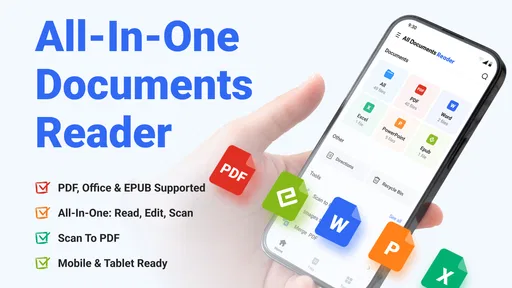
I spent time with All Document Reader: PDF/Word as a practical tool for opening common files on a phone, and its appeal became clear quickly: it tries to put several document jobs in one place instead of making me jump between separate readers, scanners, editors, and signing tools. It is a free app in the Tools category from Eternal Mobile Labs, aimed at anyone who regularly receives Word files, Excel spreadsheets, EPUB books, or PDFs while away from a computer.
The app is especially interesting when a document arrives at an inconvenient moment. A work attachment, a form that needs signing, or a page that must be scanned can all lead to a chain of separate apps on a typical phone. Here, the central idea is simpler. I can use one document-focused workspace to read, inspect, scan, edit, summarize, and e-sign, although the usefulness of each task depends on the file and the situation.
How All Document Reader handles documents when connectivity matters
When I’m dealing with documents away from reliable Wi-Fi, I separate what I can prepare on the phone from what may depend on a connection. I’d open important files ahead of time and keep the original available, then leave AI summaries or other connected steps until the network is dependable. That habit makes the handoff from reading to editing, signing, or sharing less stressful without assuming every part of the workflow works offline.
Reading is easiest when the file is already within reach
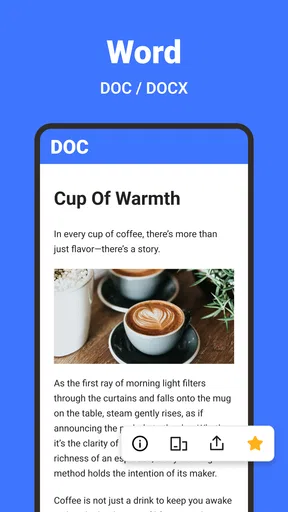
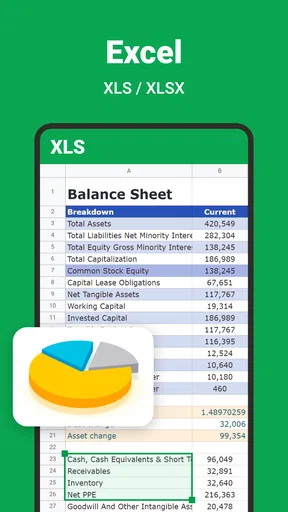
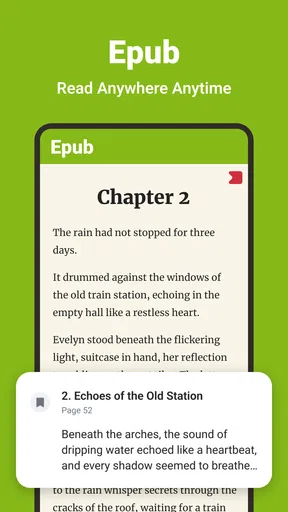
The strongest everyday use case is straightforward document reading. If I receive a PDF or Word file and need to check it immediately, a dedicated reader is more convenient than trying to open the attachment through a browser or a general file utility. The same applies to EPUB books and Excel documents: the app gives these formats a common destination, which reduces the small but annoying decisions that interrupt a mobile workflow.
That convenience becomes more valuable on a phone with many messaging, email, and cloud-storage apps installed. Instead of remembering which application handles which format, I can treat All Document Reader as the first place to try. This does not make every file equally comfortable to view, but it gives the process a predictable starting point.
Connectivity shapes that experience in a less obvious way. Opening a file already available on the device feels like a different task from obtaining it through email, cloud storage, or a messaging service. The reader itself may be ready, while the surrounding process still depends on the network. I therefore see the app as a document workspace rather than a promise that every part of document handling works independently of an internet connection.
AI summaries need a more careful workflow
The smart AI summary feature is useful when I need orientation rather than a full reading. For example, if someone sends a long report before a meeting, a summary can help me decide which sections deserve attention first. I would use it as a first pass: identify the subject, locate the important parts, then return to the original document for details and wording.
There is an important trade-off here. A summary is not a substitute for checking figures, instructions, legal language, or technical qualifications in the source. It is most helpful when time is limited and the cost of missing the main topic is higher than the cost of reading a few extra pages. Because AI processing can involve connectivity, I would avoid treating the feature as something to rely on at the exact moment a weak signal or restricted data connection becomes a problem.
A sensible habit is to prepare before leaving reliable coverage. If I know I will need a document during a commute, at a venue, or in a building with unreliable reception, I would open the file beforehand and decide whether I need the original, an edited copy, or merely a quick overview. That small step separates the reading task from the network-dependent part of retrieving or processing the file.
Scanning and signing are useful in real mobile situations
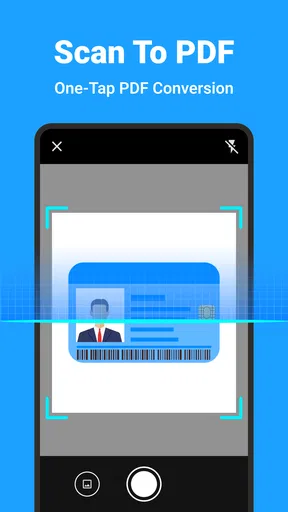
The PDF scanner is one of the more practical additions because it addresses a problem that appears outside the office. Imagine receiving a paper form at a school, clinic, rental property, or small business and needing to turn it into a usable digital document. A phone-based scanner can be faster than searching for a separate scanning application, particularly when the next step is editing or signing the result.
I would still check the scan carefully before sending it. Mobile scanning is affected by shadows, folded pages, glare, handwriting, and the angle of the camera. A readable preview is not always the same as a clean final document. The useful workflow is to scan in good light, inspect every page, then use the editor or e-sign function only after confirming that names, numbers, and signatures are visible.
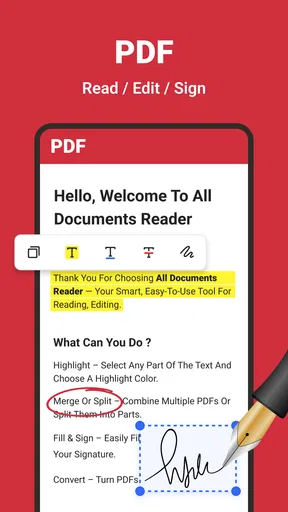
The e-sign feature makes the app more relevant for quick approvals and forms, but it should not automatically replace a formal signing process in situations with strict identity or record-keeping requirements. For an ordinary document that simply needs a signature returned promptly, it can reduce several steps. For sensitive agreements, I would first make sure the recipient accepts this type of electronic signature and that the finished file is stored where I can find it again.
Editing on a phone has a natural limit
Editing a document on a touchscreen is convenient for corrections, annotations, and last-minute changes. It is less convincing as a replacement for a full desktop office suite when the job involves extensive formatting, complex spreadsheets, or precise page layout. I found the best reason to edit here is urgency: fix a small mistake, add a note, complete a field, or prepare a document for signing.
That distinction matters for Excel files in particular. A phone is excellent for checking a value or making a modest change while travelling. It is not the environment I would choose for building a large workbook, reviewing intricate formulas, or comparing many columns at once. The app broadens access to those files, but screen size and touch input remain the real constraints.
What happens when a document will not open
Document apps are judged not only by successful openings but also by how calmly they handle awkward files. A file can be incomplete, unusually formatted, protected, or created by software with features that do not translate perfectly to a mobile reader. When that happens, I would first confirm that the original file finished downloading and that I am opening the correct copy rather than an attachment preview.
If the problem appears after a transfer, retrieving the file again through the original email or storage service is a sensible recovery step. If the document opens but looks wrong, I would compare it with the source on a computer before editing or signing. This is particularly important for forms, tables, and documents where spacing changes can alter meaning.
The app’s broad format coverage is convenient, but broad coverage should not be confused with perfect fidelity. A reader that handles PDF, Word, EPUB, and Excel in one place saves time, yet each format has its own rendering challenges. I would keep the original untouched and save a separate working copy whenever the document matters.
Using it on the move without wasting data
Connectivity becomes a practical concern when files are large, when several scans are being created, or when an AI feature is used repeatedly. I would avoid starting a large document workflow on mobile data unless the task is urgent. A better routine is to retrieve the files over a trusted connection, review which pages actually need scanning, and avoid generating multiple versions of the same document unnecessarily.
Scanned pages can become heavier than expected, especially when a document contains many images or when the camera captures more detail than the final recipient needs. Before sharing, I would inspect the resulting file and choose a sensible version for the purpose. A form sent for review may not need the same image quality as an archival copy, although I would never reduce quality so far that text becomes difficult to read.
There is also a privacy angle to data-conscious use. Documents may contain addresses, identification details, financial information, or private correspondence. I would think carefully before sending confidential material through any connected feature, particularly AI summarization or cloud-based file retrieval. The app’s convenience is greatest when the document is ordinary and the workflow is low-risk; sensitive material deserves a more deliberate review of where it is being processed and stored.
Who will get the most from this app
I would recommend All Document Reader to students, freelancers, travellers, assistants, and small-business users who frequently encounter mixed document formats. It is a good fit for someone who wants one mobile tool for reading a report, checking a spreadsheet, opening an ebook, scanning a paper page, and signing a form without installing a separate app for every task.
It also makes sense for people whose document needs are irregular but urgent. If I only need to read a contract once a week, I may not want a full office suite with a complicated interface. A focused reader can be easier to reach for, especially when the priority is opening the file quickly rather than creating a document from scratch.
The app has attracted over a million installs and holds a 4.1 average from around fourteen thousand ratings, which suggests that its all-in-one approach has found a sizeable audience. Its age rating is Everyone, making the presentation broadly accessible rather than aimed at a specialist professional niche.
Who should choose a different tool
I would look elsewhere if my main requirement were advanced office production. People who build complex spreadsheets, collaborate intensively on live documents, or depend on exact desktop formatting will probably be better served by the dedicated office application associated with their work files. The same is true for professional publishing, where an EPUB reader with deep typography controls may be preferable to a general document utility.
I would also hesitate to make it my only solution for highly sensitive legal, medical, or financial documents until I had personally reviewed the app’s handling options and felt comfortable with the workflow. Convenience is not the same as suitability for every document. The more confidential the file, the more important it is to understand each connected step before using AI, scanning, sharing, or signing.
Version, cost, and the practical value of the bundle
The current version is 4.12.0, and the app is free to install. That makes it easy to test against the formats I actually use rather than committing to a subscription before knowing whether the interface suits me. The developer is Eternal Mobile Labs, and the broad feature set gives the app a clear advantage over a basic PDF-only reader.
There are in-app purchases ranging from $3.99 to $94.99 per item. That range means I would pay attention to which tools are included in the free experience and which actions may lead to a purchase prompt. The free entry point is helpful, but the overall value depends on whether I need occasional reading or frequent access to advanced functions such as AI assistance, editing, scanning, or signing.
The minimum operating system is Android 8.1, so compatibility is reasonably friendly to older devices that are still in everyday use. Even so, performance will naturally depend on the phone, the size of the document, and the complexity of the file. A lightweight PDF and a large image-heavy document are very different tests of a mobile reader.
My final view after using it as a mobile document hub
All Document Reader: PDF/Word is most convincing when I treat it as a flexible emergency desk for the phone. It brings together reading, scanning, editing, AI summaries, and e-signing in a way that can remove friction from small but important tasks. Its value is not that a phone suddenly becomes a full computer; its value is that I can respond to a document without waiting to reach one.
The connectivity question is central to using it well. I would prepare important files before entering a weak-signal environment, avoid assuming that every smart feature is available at the worst possible moment, and keep original copies before making edits or signatures. Those habits make the app more dependable without pretending that a multi-format tool eliminates network, screen-size, or file-compatibility limits.
My recommendation is positive for readers who want a broad, practical document toolbox on mobile, especially when quick access matters more than advanced formatting. I would choose a dedicated office, ebook, scanning, or signing solution when one of those jobs becomes the main part of my work. For mixed everyday needs, though, the free starting point and wide format coverage make this a useful app to keep ready for the next unexpected document.
Verdict
Strengths of All Document Reader: PDF/Word
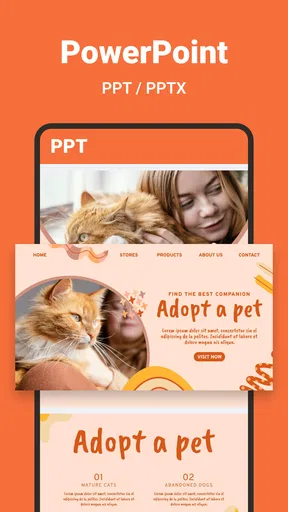
- Opens PDF, Word, Excel, and PowerPoint files in one place.
- Search tools make finding text within long documents quick and convenient.
- Supports offline reading after files are stored on the device.
- Simple interface is easy for first-time users to understand.
- Useful sharing and export options help send documents to other apps.
Limitations of All Document Reader: PDF/Word
- Some advanced editing features may require a premium upgrade.
- Advertising can interrupt navigation in the free version.
- Large documents may take longer to load on older phones.
- Formatting may not always appear exactly as in the original file.
- The app may request broad file access permissions to scan documents.
Other Releases by Eternal Mobile Labs
View All
PDF Reader - Editor & Viewer
Tools4.4
Similar Picks in This Category
View All
Google LLC4.0

Gboard - the Google Keyboard
Google LLC4.5

Google Play services
Google LLC4.3

Google Play Store
Google LLC4.9

Files by Google
Google LLC4.5

SHAREit: Transfer, Share Files
Smart Media4U Technology Pte.Ltd.4.3
Frequently Asked Questions
What is All Document Reader: PDF/Word used for?
All Document Reader: PDF/Word is designed to help users open and read common document formats from one mobile app. It can be useful for viewing PDF files, Word documents, spreadsheets, presentations, and other supported files without switching between several office or document-reading tools. It is mainly focused on convenient reading and file access rather than replacing a full desktop office suite.
Which file formats does All Document Reader: PDF/Word support?
The app is intended to support popular document types such as PDF and Microsoft Word files, while also offering compatibility with other commonly used office formats depending on the version installed and the device. Before downloading, users should check the current store listing for the exact format list, because support can vary between Android and iOS releases and may change after updates.
Can I edit documents with All Document Reader: PDF/Word?
All Document Reader: PDF/Word is primarily a document-viewing application, so its strongest feature is opening and reading files rather than providing advanced editing tools. You may be able to perform basic actions such as searching text, zooming, sharing, or organizing files, but professional editing, formatting, track changes, and complex spreadsheet work may require a dedicated office application.
Is All Document Reader: PDF/Word free to download and use?
The application may be available as a free download, but free versions of document readers commonly include advertisements, optional purchases, or premium features. Some functions may be limited unless users subscribe or upgrade. I recommend reviewing the app-store description, pricing section, and subscription terms before installation so you understand what is included at no cost and what may require payment.
Are my documents safe when using All Document Reader: PDF/Word?
Document security depends on how the app handles storage, permissions, sharing, and any online services it uses. Before opening sensitive files, review the permissions requested and read the developer’s privacy policy. Avoid granting unnecessary access, especially to documents unrelated to the app’s purpose, and be careful when using sharing or cloud features. Confidential business or personal files should be handled with additional caution.
